Advanced Search Operators for the LinkedIn Pro
In November 2008, we rolled out the new LinkedIn Search platform after many months of design and technical work. Listening to the LinkedIn community is extremely important to us, and search is an application that millions of LinkedIn users depend on to get their jobs done everyday.
It has only been a little over a month since the full launch, but the results of that effort have been amazing. We’re already seeing a huge increase in the number of searches on the site on a daily basis. As more and more people use the platform, they are discovering more of the more advanced features built into LinkedIn search.
In 2007 I wrote a popular blog post called 5 Tips on How to Search LinkedIn Like a Pro which walked through some of the basics of Advanced Search and how to use advanced features like Boolean search. These features are extremely powerful, and are fully supported in our new search platform.
However, for real power users, our old search interface had a limitation: you had to use the actual Advanced Search form to target specific fields for your queries. Not any more.
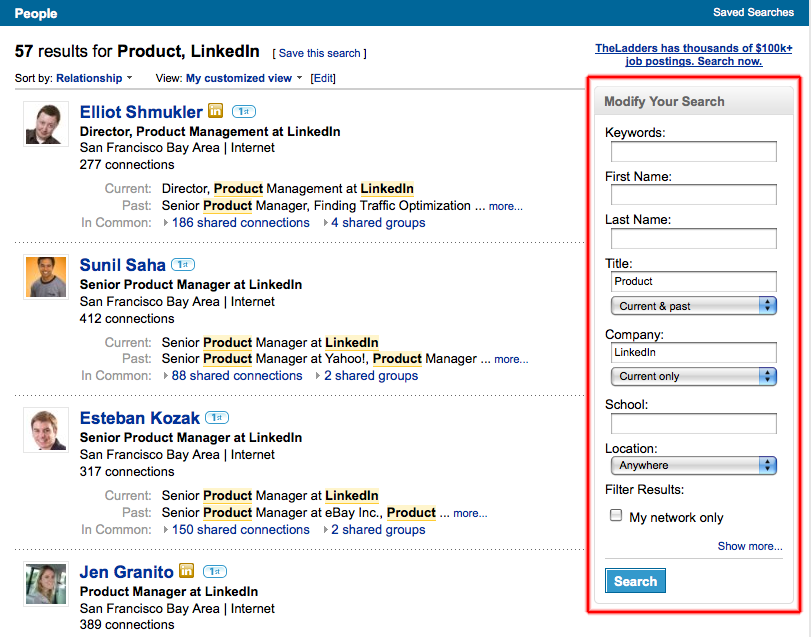
The new LinkedIn Search allows users to easily target specific fields directly from the search results page:

This makes it incredibly easy to iterate through your search, adding more specific terms and fields to help narrow your search, which is crucial to finding just the right people among an audience of 33 million professionals (and growing).
However, we know that real power users always want to go even faster. And to go faster, you need to move beyond the graphical user interface, and be able to control your search directly from the query box itself.
Now you can. The new LinkedIn search platform allows any query that can be executed from the user interface to also be executed straight from the query box using the new advanced search operators.
For example, let’s say that you wanted to search for designers who used to work at Apple or Google.
You could type
designer AND (Apple OR Google)
into the LinkedIn search box. That would give you every person who has the keyword “designer” in their profile, and either the keyword “Apple” or “Google”.
That’s a good query, but it will find people who have the keyword “Apple” or “Google” in their profile for other reasons. For example, maybe they never worked at Apple, but they have training and skills with Apple products. You can refine this with the “Modify Your Results” box, but that requires a large number of clicks and edits.
Now, with the new Advanced Search Operators, you can skip those steps and execute your query right the first time, straight from the search box.
Just type:
designer pcompany:’Apple OR Google’
The advanced search operator “pcompany:” tells the search engine to only look for the terms “Apple” or “Google” within the past companies field on the LinkedIn profile. This way, you’ll only see people who actually used to work at either Apple or Google.
With the new advanced search operator functionality, you can target first name, last name, current position, company, school, or any field supported by the LinkedIn search engine. A complete list of the fields supported is located on the LinkedIn Learning Center. We support fifteen advanced search operators already – more are planned in 2009.
We’ll follow up here on the blog with more great search functionality in the coming weeks. Now go out and query like a Pro!
Tags: linkedinsearch, peoplesearch, search
trackback
http://blog.linkedin.com/2009/01/08/advanced-search-operators-for-the-linkedin-pro/trackback/


LinkedIn Geek Fest: Advanced Search Operators « Psychohistory January 8th, 2009
[...] LinkedIn Blog: Advanced Search Operators for the LinkedIn Pro [...]

Rob Gibbs January 8th, 2009
Hey guys,
Why did you take the “sort by most number of connections” and “Sort by degrees away”
Rob
Irina Shamaeva January 8th, 2009
Do you plan to allow searches using the new operators syntax to combine 2 or more operators from the same field in one string? An example would be to use ccompany and pcompany in one string. It seems it is not possible right now.
Thanks!
Perry van Beek January 9th, 2009
It is great! What I would still like to see improved further is better search options based on geography (by country, multiple countries/areas, etc.).
steveportigal January 9th, 2009
From the title of this post I thought there were advanced search capabilities provided to users of a certain membership level, not everyone.
Ian Goldsmid January 9th, 2009
I really like this new interface – but here I am today – in New Zealand – and have been unable to perform any searches – the pages hang – and all other Linkedin pages either do not load – or take minutes.
Now I am not a granny – I am a power user. My broadband is working great. All other web sites working just great – as normal.
But linkedin isn’t functioning – I have a Pro account (read lots $$$ !!!) – and I use it all day every day for serious business research.
HELP!!!!
Ian Goldsmid January 9th, 2009
just a quick follow up – I trust its obvious from this post that I am connected and posting ok.
Is there some kind of bandwidth issue for international users?
Is anyone else having problems accessing LinkedIn today?
Wordpress Trackback Tips - Getting Traffic From Trackbacks and Comments | Firepow Software $50 Discount & Free Mentoring January 9th, 2009
[...] The LinkedIn Blog » Blog Archive Advanced Search Operators for the … [...]
Henrik Lehmann January 10th, 2009
How about ebanling search functionalities within group discussions?
Alejandro Ramirez January 10th, 2009
Unrelated topic, but I have a feature suggestion:
For all of us who are contractors, it would be nice if you would allow us to enter company info so that we can get networking information from both the company we work for, and the client where we work.
For example:
Company Name: NAME_HERE
|_| Checkbox to indicate if this is a consulting/contracting firm
and if you check this option, then the following section is enabled:
Name of Client Company: CLIENT_NAME_HERE
You get the idea right?
So for instance, right now I work for contracting company ABC, in a project at XYZ. It would be great to benefit from the networking of both!
Alejandro
Keith Peterson January 11th, 2009
Hi Adam,
Where’s the best place to submit ideas for LinkedIn features I would love to see?
Jerry Okorie January 12th, 2009
Thanks for the illustrations. Guess all search queries are similar in nature but different within its options.
Mario Sundar January 12th, 2009
@Keith,
The blog is one of the places you can submit ideas (within appropriate product posts), but feel free to also send us your feedback via the “Help Improve LinkedIn” link at the bottom of every LinkedIn page on the site. This can be found right below the footer. Let me know if you’re having problems finding it. Hope this helps.
Mario from LinkedIn
Ron Garner January 12th, 2009
Great job! Much more useful for us search addicts/researchers.
Craig Lawrence January 13th, 2009
Adam,
The information on your Linkedin Learning Center page is wrong. Let me be more specific.
The Learning Center page says the following:
# Sort by:
* Relationships:
o Show the people “closest” to you first (your connections are first, then people connected to your connections, then their connections, then people in your groups and so on).
THIS IS NOT TRUE! The current search interface returns 1st line connections first, 2nd line connections next, and then completely mixes 3rd line and out of networks contacts together.
How is this good? It also contradicts what your Learning Center says.
I’ve written customer support many times and only get a canned response.
Also what happened to the keywords field in the expanded results? It’s nice to where a keyword falls before looking at someone’s profile.
Anyone here (hopefully Adam too) know if this is a mistake or something done intentionally? And if done intentionally, WHY?
Craig
Will Entriken January 13th, 2009
Here’s a blog post about privacy violations at LinkedIn:
http://privacylog.blogspot.com/2008_12_01_archive.html
Raj DreamJOBZ January 13th, 2009
I can’t see “Sort by degrees away” options in LinkedIn.. hmm I wonder why? Is there any commercial reason for that?
Carolyn January 14th, 2009
I have found at times that using the feature to limit to my network only returns zero results, when I had results with 2nd and 3rd connections prior to checking the box. Additionally, I wish it could sort by the degrees away from me still, since this was incredibly helpful.
Patrick OMalley January 14th, 2009
I hvae a ton of these, but it would be nice if
1) my last search defaults were persistent, i.e. if my last search was within 10 miles of Boston, it should assume that the next search would be within 10 miles of Boston, so I shouldn’t have to specify that again
2) the search button should be at the bottom of the results page, not the top, to save scrolling
Pat
http://www.patrickomalley.com
Patrick OMalley January 14th, 2009
It doesn’t really appear to work. Even the simple example from your Help Center,
school:harvard ccompany:linkedin
gives the error
(BIG RED X) There was an unexpected problem that prevented us from completing your request.
Other, like
“meeting planner” radius:50 zip:30301 country:”United States”
return 0 results when there should be 152. The features look like they could be cool, but need
- to work
- to have better documentation and examples
Pat
http://www.patrickomalley.com
Alexander February 12th, 2009
Hi! It would be great if one were able to use a combination of multiple search operators from one filed. Example ccompany:x pcompany:y . Do you plan to introduce such a function?
Alexander
Dennis Szerszen February 20th, 2009
LinkedIn has the potential to do much more with search than finding a few contacts. At Quintura, we’ve realized that by representing search terms in the form of an interactive tag cloud, {along with graphic associations) creates new opportunities to leverage search for all sorts of interactions, not just navigation. I think LinkedIn’s search progress is great, but also know that there’s bigger opportunities just over the horizon.
Brad March 5th, 2009
Okay, so I just asked Customer Service, “what is the maximum # of Characters I can use in an advanced search”. The response was the simplest response I’ve ever received, “It is 30″. So, of course, my curiosity was peaked and I tested it. I did this by using the search 1 OR 2 OR …. Or 29 OR 30 and it worked. However I wanted to double check it and added 31, and it also worked, hmmmm. I then added 5 more, it also worked, then went up to 45, 55, 75, 100; THEY ALL WORKED. Well, I wonder where the 30 answer that the linkedin customer service representative came from. I finally broke it when I jumped up to 125, which returns the response “We are currently upgrading the search engine. Search will be back momentarily.” SO I played around with it and it seems that sometime the search result works and sometimes it doesn’t at or above 104-110 but I was never able to hit the 125 mark. This was all done in the Keyword search criteria, just wanted to know what my options where Since I had broken it with some of my complicated searches earlier. I’m not sure if numbers and words have any comparison but thought I’d play around with things and let any super users know what I’ve found.
Cheers,
dirkfrey March 31st, 2009
@Brad- The search engine will return results for most long complex queries but internally we have an upper limit in place to prevent abuse and attacks.
Regards,
Dirk
Simon Wilby April 24th, 2009
This is really good post. Human resources of any company should learn these search operators so it would be easier for them to look for prospects.